

Exploring History
Exploring History
We've seen that
git log gives us some information on what commits were made when, but let's look a bit deeper at the specifics:git log
commit f15ad111042cee7492f40ad6ff0ec18588fce753 (HEAD -> main) Author: Sam Mangham <mangham@gmail.com> Date: Wed Mar 30 17:15:47 2022 +0100 Add rainfall processing placeholder commit 6aeaf44173344939e9994d7ccb5512fc5b26c211 Author: Sam Mangham <mangham@gmail.com> Date: Wed Mar 30 17:14:14 2022 +0100 Add Docstring commit 503f02b5f51d5622121e204494dfabc9b2ae7410 Author: Sam Mangham <mangham@gmail.com> Date: Wed Mar 30 17:12:02 2022 +0100 Added a basic readme file commit 499b6d18b36a25d3f5ab9be1b708ea48fef1dd65 (origin/main, origin/HEAD) Author: Sam Mangham <mangham@gmail.com> Date: Wed Mar 16 14:19:13 2022 +0000 Initial commit
We can see commits identified by long IDs, but also HEAD at the top of the log. HEAD is the name used to refer to the most recent end of the chain of commits to our local repository.
Relative History
What if somehow we've introduced a bug, and we want to see what's changed between our latest version of the code and the copy that was working last commit, or a few commits ago? Which lines did we edit, and what did we add?
We can use
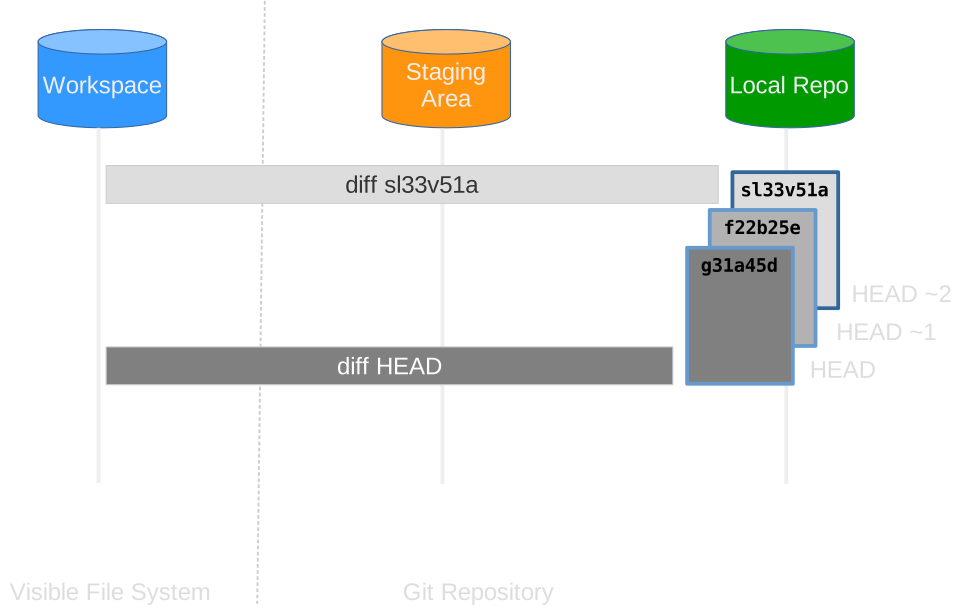
git diff again to look for differences between files, but refer to the versions of the files as saved in older commits using the notation HEAD~1, HEAD~2, and so on to refer to the commits.
We can refer to previous commits using the ~ notation,
so HEAD~1 (pronounced "head minus one")
means "the previous commit",
while HEAD~123 goes back 123 commits from the latest one.git diff HEAD~1 climate_analysis.py
diff --git a/climate_analysis.py b/climate_analysis.py index d5b442d..c463f71 100644 --- a/climate_analysis.py +++ b/climate_analysis.py @@ -26,3 +26,5 @@ for line in climate_data: kelvin = temp_conversion.fahr_to_kelvin(fahr) print(str(celsius)+", "+str(kelvin)) + +# TODO(smangham): Add call to process rainfall
So we see the difference between the file as it is now, and as it was the commit before before the latest one.
git diff HEAD~2 climate_analysis.py
diff --git a/climate_analysis.py b/climate_analysis.py index 277d6c7..c463f71 100644 --- a/climate_analysis.py +++ b/climate_analysis.py @@ -1,3 +1,4 @@ +""" Climate Analysis Tools """ import sys import temp_conversion import signal @@ -25,3 +26,5 @@ for line in climate_data: kelvin = temp_conversion.fahr_to_kelvin(fahr) print(str(celsius)+", "+str(kelvin)) + +# TODO(smangham): Add call to process rainfall
And here we see the state before the last two commits, HEAD minus 2.
Absolute History
What about if we want to compare our version of the code to the version from last month, or from the version we used to make a paper last year?
Calculating the number of commits is wildly impractical.
Instead, we can refer to specific revisions using those long strings of digits and letters that
git log displays.These are unique IDs for the changes,
and "unique" really does mean unique:
every change to any set of files on any machine
has a unique 40-character identifier. (A SHA-1 hash of the new, post-commit state of the repository).
If we scroll down to the bottom of the
git log output, we can see the ID for our first commit - in the example above, it's 499b6d18b36a25d3f5ab9be1b708ea48fef1dd65 (but yours will be different!). Try this, substituting your first commit's ID:git diff 499b6d18b36a25d3f5ab9be1b708ea48fef1dd65 climate_analysis.py
diff --git a/climate_analysis.py b/climate_analysis.py index 277d6c7..6f8ed8a 100644 --- a/climate_analysis.py +++ b/climate_analysis.py @@ -1,3 +1,4 @@ +""" Climate Analysis Tools """ import sys import temp_conversion import signal @@ -25,3 +26,5 @@ for line in climate_data: kelvin = temp_conversion.fahr_to_kelvin(fahr) print(str(celsius)+", "+str(kelvin)) + +# TODO(smangham): Add call to process rainfall
We can now see all the changes since a specific commit! However, typing random 40-character strings is annoying and incredibly easy to typo,
so Git lets us use just the first seven:
git diff 499b6d1 climate_analysis.py
diff --git a/climate_analysis.py b/climate_analysis.py index 277d6c7..6f8ed8a 100644 --- a/climate_analysis.py +++ b/climate_analysis.py @@ -1,3 +1,4 @@ +""" Climate Analysis Tools """ import sys import temp_conversion import signal @@ -25,3 +26,5 @@ for line in climate_data: kelvin = temp_conversion.fahr_to_kelvin(fahr) print(str(celsius)+", "+str(kelvin)) + +# TODO(smangham): Add call to process rainfall
This is particularly handy as you can exactly identify specific versions of the code, for example the one you used to write your first paper, and the different, newer version you used to write your second paper.
Other Ways To Reference Commits
Newer versions of Git have some more advanced ways of referencing past commits. In place of
HEAD~1 you can use HEAD~ or HEAD@{1},
or you can even use text to ask more advanced questions, like git diff HEAD@{"yesterday"} or git diff HEAD@{"3 months ago"}!Restoring Files
All right:
we can save changes to files and see what we've changed - suppose we need to restore older versions of things?
Let's suppose we accidentally overwrite or delete our file:
rm climate_analysis.py ls
README.md temp_conversion.py
Whoops!
git status now tells us that the file has been changed,
but those changes haven't been staged:git status
# On branch main # Your branch is ahead of 'origin/main' by 3 commits. # (use "git push" to publish your local commits) # # Changes not staged for commit: # (use "git add/rm <file>..." to update what will be committed) # (use "git restore <file>..." to discard changes in working directory) # # deleted: climate_analysis.py # no changes added to commit (use "git add" and/or "git commit -a")
Following the helpful hint in that output, we can put things back the way they were
by using
git restore:git restore climate_analysis.py cat climate_analysis.py
cat will output the contents of the file, starting with:""" Climate Analysis Tools """ import sys import temp_conversion ...
By default,
restore replaces the file with the version of it in the staging area (Git's own documentation often calls this the index - the two terms refer to the same thing).
If you haven't used git add, that should be the same as the version in the last commit.
But what if we already used git add on our incorrect version of a file, or we broke the file more than one commit ago?We can use
git checkout, e.g.:git checkout <HEAD or commit ID> climate_analysis.py
Compatibility Notice
Older versions of Git don't include the
git restore command - fortunately, it's just a shortcut for git checkout --.
If git restore doesn't work, try git checkout -- temp_conversion.py.
checkout has a lot of functions, and newer versions of Git simplify things by giving them new names.Double Whoops
What if you accidentally did
git rm climate_analysis.py? That command tells Git to delete the file and remove it from the repository - so it will record that the file has been deleted, then stop tracking further changes.
Even if you re-make the file, it won't be tracked until you use git add on it again.The file still exists in the history, though so if you want to undo this you can do
git checkout HEAD climate_analysis.py, to get the file back and start tracking it again.
Since you can retrieve any file that existed in a previous commit, even if you removed it from future ones, this makes it important to not commit files containing passwords or sensitive information!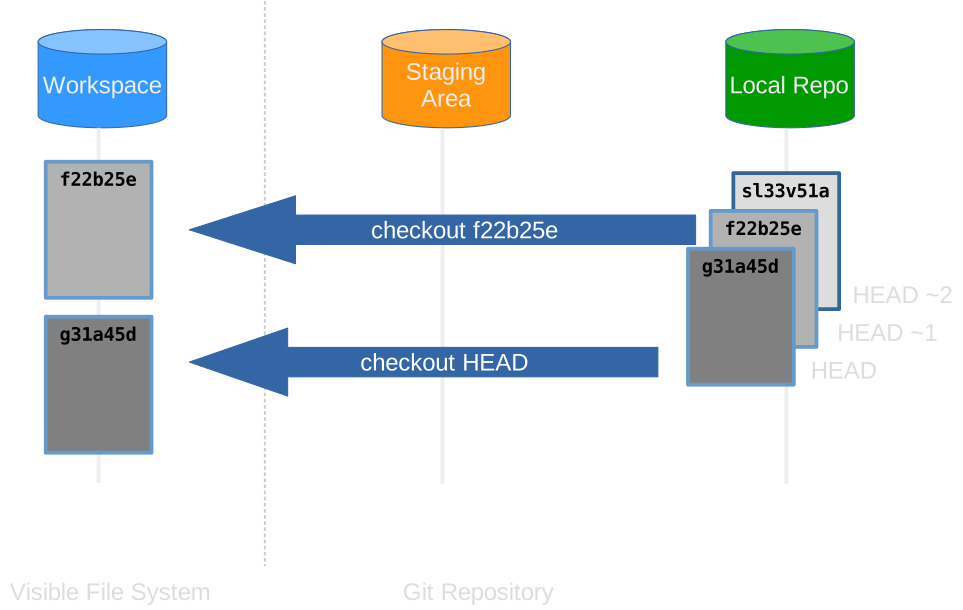
The fact that files can be reverted one by one
tends to change the way people organize their work.
Consider a situation where all your code is in one file,
and you fixed a bug in one section but accidentally introduced one elsewhere.
Cleanly undoing just the broken section is possible, but fiddly: you'd need an IDE with per-hunk revert support, or Git's own interactive tools (like
git checkout -p) to pick out which lines to restore.
If each section is in its own file, you can just roll back the one file you broke!Undoing a commit with git revert
Restoring a file fixes a mistake in your working directory. But what if you've
already committed a change that turns out to be wrong, and you want to undo the
whole commit?
The safe way to do this is
git revert. Suppose we committed a change we now
regret. We can undo the most recent commit with:git revert HEAD
An editor will pop up with a default commit message (something like
Revert "..."), which you can accept and save. Git then creates a new commit
that applies the exact opposite of the change, sometimes called an antipatch.git log --oneline
b7f3a21 Revert "Add incorrect rainfall units" a1b2c3d Add incorrect rainfall units fd30d36 Add rainfall processing placeholder
Notice that the mistake stays in the history: there is one commit that made
the change, and another that undoes it. This is a good thing - you keep a full,
honest record of what happened, including the error and its correction, and
because you only ever add commits,
revert is safe to use even on changes you've
already pushed and shared.If the change you're reverting overlaps with later edits, Git may not be able to
work out how to undo it automatically and will report a conflict. If that
happens, resolve it by hand exactly as you will for merge conflicts, covered in the
next episode, Remote Repositories.
Exercises
Exercise: Recover a deleted file
You run
rm climate_analysis.py by mistake - the file is gone from your working directory, but you committed it earlier. How do you get it back?Exercise: revert or reset?
You committed a change that broke your analysis, and you've already pushed it to GitHub where a collaborator has pulled it. Do you use
git revert or git reset to undo it, and why?Key Points
HEADis the latest commit; refer to earlier ones withHEAD~1,HEAD~2, ... (or specific commit IDs).git diff <commit>compares your files against any past commit; short 7-character IDs are enough.- Recover a changed or deleted file from the last commit with
git restore(orgit checkout). - Undo a committed change safely with
git revert, which adds an "antipatch" and keeps history intact. git resetrewrites history and can lose work - only use it on local commits you haven't shared (advanced).
Advanced: rewriting history with reset
Advanced: safe to skip
This section rewrites history and can lose work if used carelessly. Beginners can
safely skip it:
git revert above is almost always what you want.Where
git revert adds a commit that undoes a change, git reset can move
HEAD backwards, removing commits from the current branch's history entirely
as if they had never happened. (For more ways of rewriting history, see the
optional Rebasing and Squashing episode later in this course.)Say we just made a bad commit:
git log --oneline
9a0b1c2 Add a silly spelling mistake fd30d36 Add rainfall processing placeholder
We can drop that last commit with:
git reset HEAD~1
git log --oneline
fd30d36 Add rainfall processing placeholder
The silly commit is no longer in the log. By default
reset leaves your
working directory unchanged, so the edited file is still there and you can keep
or re-do the work. If you also want to throw away the changes in your working
directory, you can use git reset --hard - but be careful, as this permanently
discards those local changes.HEAD~n and HEAD^
You'll see two notations for "recent commits":
HEAD~1,HEAD~2,HEAD~3: one, two, three commits beforeHEAD.HEAD^,HEAD^^: a shorthand for one and two commits back.
So
git reset HEAD^ and git reset HEAD~1 do the same thing. (The two notations
differ only when a commit has multiple parents, such as a merge commit.)Because
reset rewrites history, never use it on commits you've already pushed
or shared - others may already have them. Use it only for tidying up local,
un-pushed commits (for example, to fix a commit message). If in doubt, use
git revert instead.